How to Start Streaming on Twitch
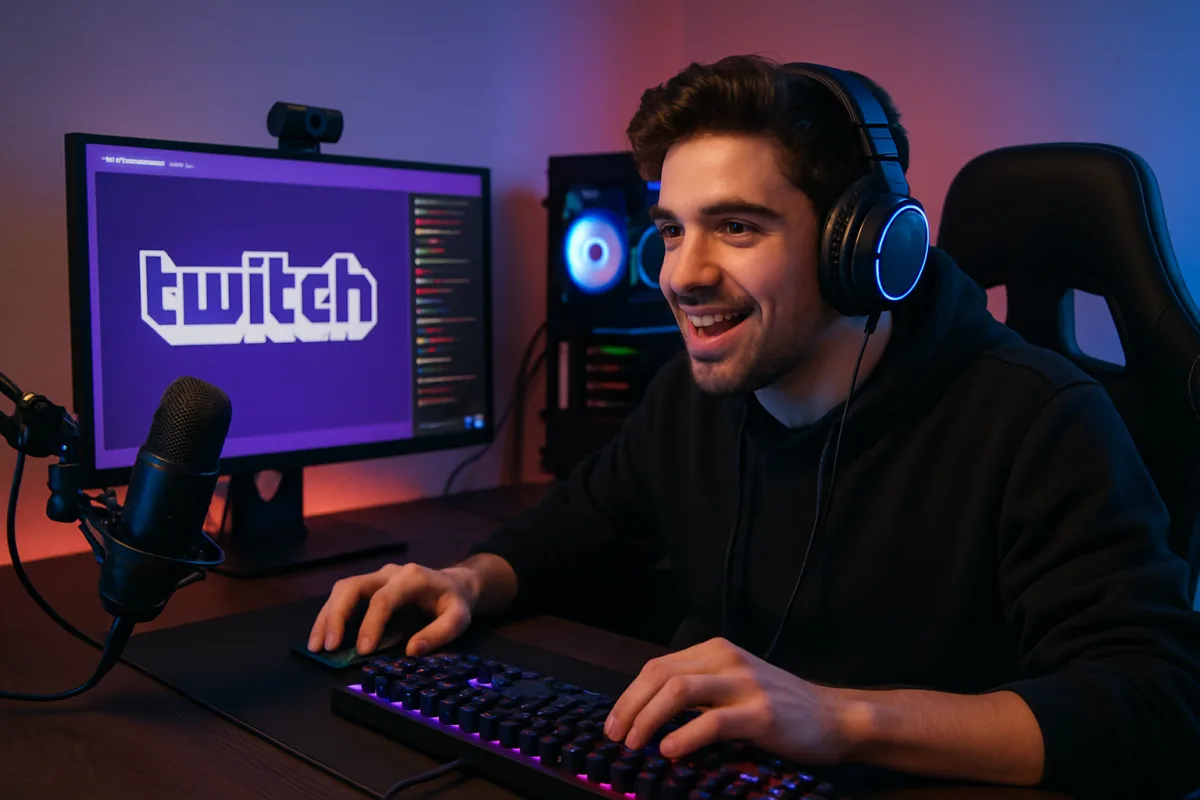
To start streaming on Twitch, you'll need a reliable computer or console, a stable internet connection, and streaming software like OBS or Streamlabs. Create a Twitch account, set up your channel, and customize your profile. Ensure your audio and video settings are optimized for quality. Finally, engage with your audience and promote your streams on social media for better visibility.
Quick Summary
Starting to stream on Twitch involves several key steps: setting up your hardware and software, creating an account, customizing your channel, and engaging with viewers. Essential tools include a good computer or console, a stable internet connection, and streaming software like OBS. Consistent interaction with your audience is crucial for growth.
Curator Notes
To begin streaming on Twitch, first ensure you have the right equipment. A decent computer or gaming console is essential, along with a stable internet connection, ideally with upload speeds of at least 3-6 Mbps for smooth streaming. You'll also need a good microphone and webcam to enhance viewer interaction and engagement.
Next, download streaming software such as OBS (Open Broadcaster Software) or Streamlabs. These tools allow you to capture your gameplay, manage overlays, and interact with your audience through chat. After installing the software, create a Twitch account and customize your channel with a profile picture, banner, and bio to attract viewers.
Finally, promote your streams on social media platforms to increase visibility and grow your audience.
Recommended Options
- OBS Studio: Best for Beginners and advanced streamers looking for a free, customizable solution. OBS Studio is open-source, highly customizable, and offers extensive features for both novice and experienced streamers. Signal checked: Widely used in the streaming community, praised for its flexibility and support. Alternative to consider: Streamlabs OBS, which offers a more user-friendly interface.
- Streamlabs OBS: Best for Streamers who prefer an easy-to-use interface with integrated features. Streamlabs OBS combines powerful streaming tools with a user-friendly interface, making it ideal for newcomers. Signal checked: Popular among streamers for its ease of use and integrated alerts. Alternative to consider: XSplit, which offers premium features but at a cost.
- Elgato HD60 S: Best for Console gamers looking to stream high-quality gameplay. Elgato HD60 S captures gameplay in 1080p60 and has low latency, making it perfect for live streaming. Signal checked: Highly rated by users and professionals for its reliability and performance. Alternative to consider: AverMedia Live Gamer Portable, which offers similar features.
Best Sources
Videos and Community Signals
Let's show you how to go live on Twitch in under 5 minutes, you'll learn what software to use, what settings, how to capture your ...
UPDATE: Watch the brand new 2026 version of this guide here: https://youtu.be/_7DTDi8BVGc Grab my FREE 2026 Streamers ...
Comparison
| Decision Point | Good Starting Choice | When to Go Further |
|---|---|---|
| Streaming Software | OBS Studio - Free and highly customizable. | Streamlabs OBS - User-friendly with integrated alerts and overlays. |
| Hardware for Console Streaming | Capture Card - Elgato HD60 S for 1080p streaming. | AverMedia Live Gamer Portable for additional features. |
FAQ
You'll need a reliable computer or gaming console, a stable internet connection, a good microphone, and a webcam.
Promote your channel through social media, engage with your audience, and collaborate with other streamers.